%20(1).png)

Welcome to our downloadable content page, specifically designed for transaction coordinators like you! Here, you'll find a wide variety of high-quality content, including social media posts, flyers, business cards, Facebook covers, and more - all made with Canva and ready to download and customize.
Our content is tailored to the needs and interests of transaction coordinators, with a focus on providing practical and visually appealing resources that can help you enhance your online and offline presence. Whether you're looking to promote your business, connect with clients, or simply save time and effort on content creation, our downloadable content is the perfect solution.
So, take a look around and see what we have to offer - we're confident that you'll find something that meets your needs and exceeds your expectations.💛
marketing materials for TCs by TCs
.png)
.png)
.png)
Welcome to our downloadable content page, specifically designed for transaction coordinators like you! Here, you'll find a wide variety of high-quality content, including social media posts, flyers, business cards, Facebook covers, and more - all made with Canva and ready to download and customize.
Our content is tailored to the needs and interests of transaction coordinators, with a focus on providing practical and visually appealing resources that can help you enhance your online and offline presence. Whether you're looking to promote your business, connect with clients, or simply save time and effort on content creation, our downloadable content is the perfect solution.
So, take a look around and see what we have to offer - we're confident that you'll find something that meets your needs and exceeds your expectations.💛
monthly marketing


.png)

.png)
%20Monthly%20Content%20Image%20Squares%20-%20TC%20Social%20Club%20Website%20-%20Templates_gif.gif)

.png)


.png)
%20Monthly%20Content%20Image%20Squares%20-%20TC%20Social%20Club%20Website%20-%20Templates_gif.gif)


.png)
%202.png)


.png)


.png)


.png)
.png)


.png)
.png)

.png)

foundational templates


.avif)
.avif)
.avif)
.avif)


.avif)

.avif)


social media templates
_gif.gif)
)_gif.gif)





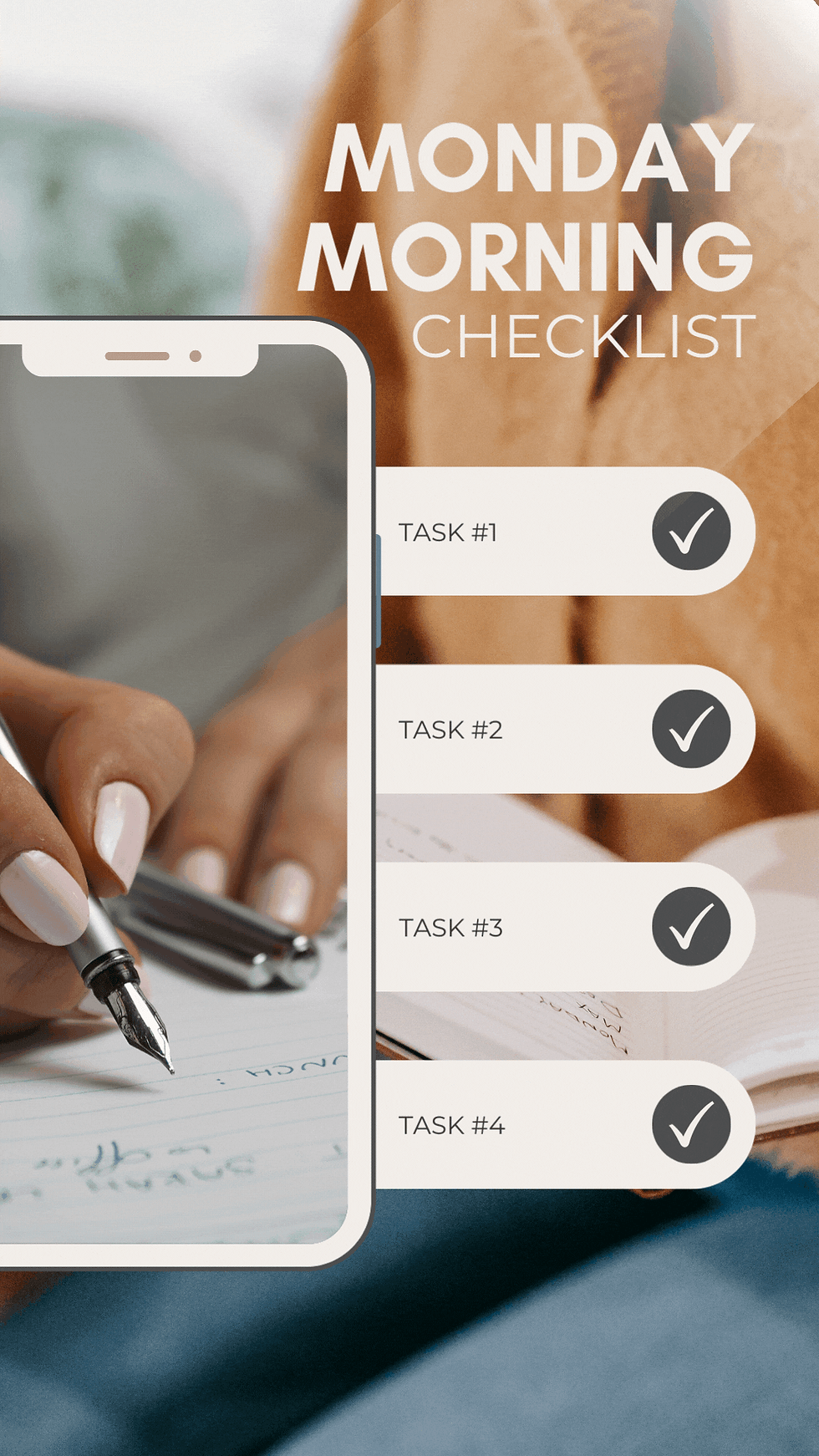




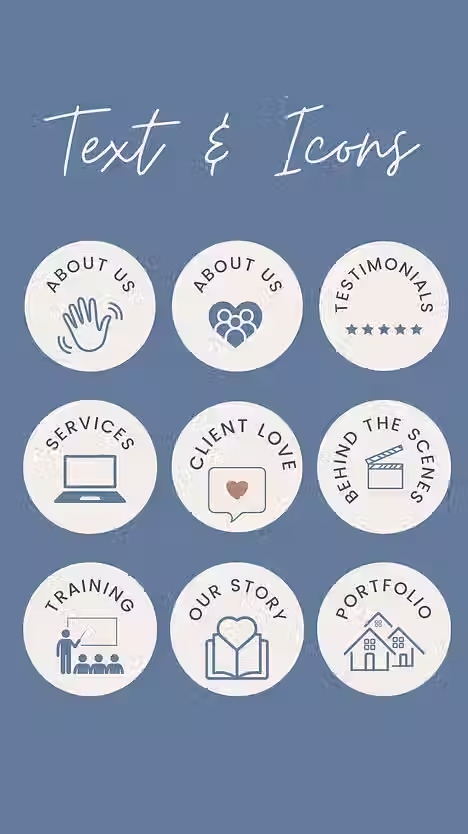


campaigns + touch templates





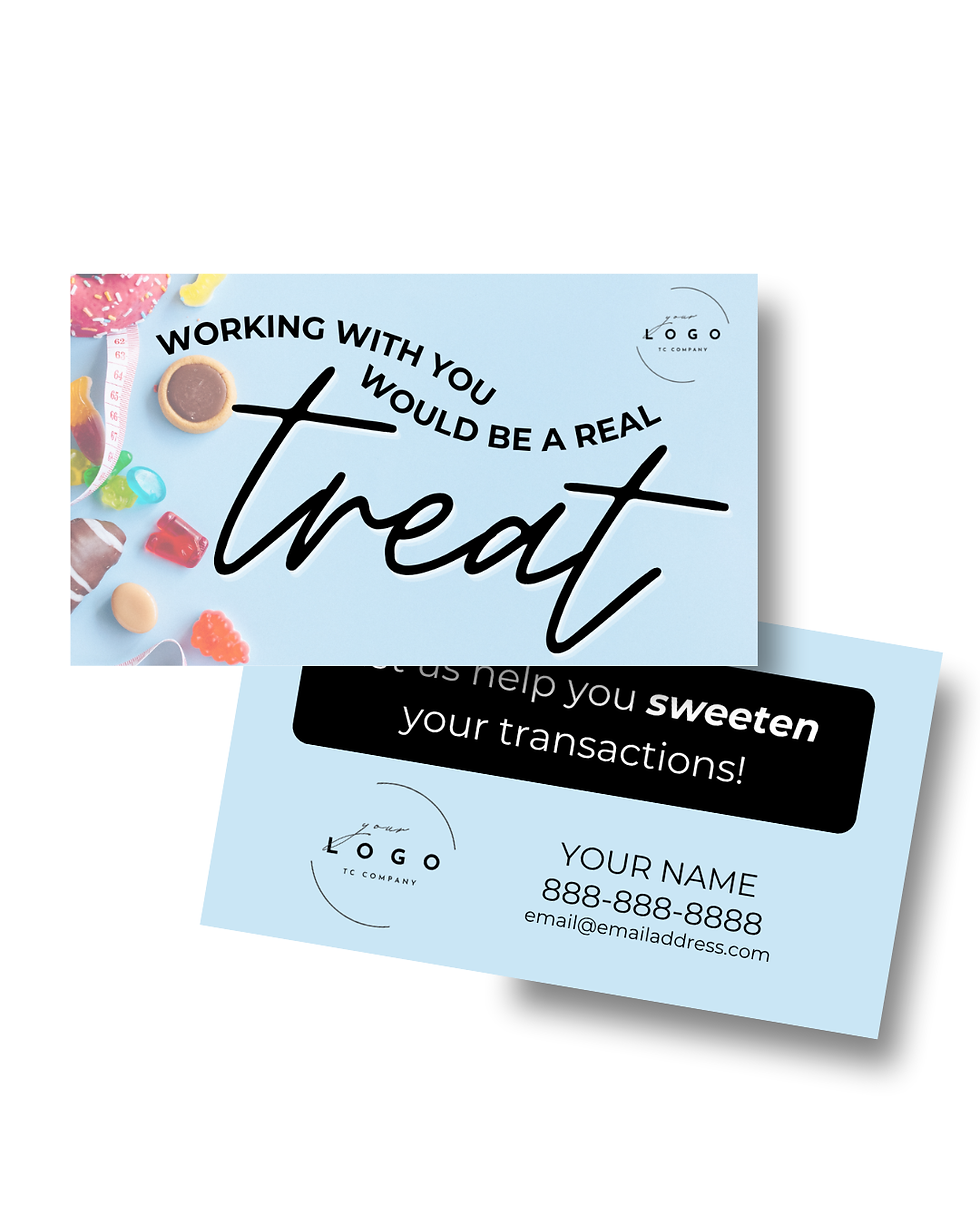

.avif)
.avif)





Spring Season Connection Card


troubleshooting Q+A for members
-
Open your login form
-
Click the 'Forgot Email' link
-
Fill out the form and click 'Request help now'
-
Wait for the site's support to contact you for help
-
-
Open your login form and click 'Forgot password?'
-
Fill in the form and click 'Send me reset instructions' at the bottom
-
Open the Password reset request email in your inbox and click the 'Click Here' link: If you are not seeing the password reset email in your inbox, try these troubleshooting tips
-
Enter the new password and click 'Reset Password'
-
Log in with your new password
-
-
Open your Account
-
Click the 'Change your password' link under the 'Profile' section
-
Fill in the form and click 'Update Password'
-
-
Open your Account
-
Click on 'Edit your profile' under the Profile section
-
Change any information you want then click 'Update Profile' at the bottom
-
-
Open your Account, Click the "Update credit card" link under the "Billing" section
-
Enter your new card information and click "Update Credit Card"
-
-
Open your Account
-
Click the 'Change your email' link under Profile
-
Fill in the form and click 'Update Email'
-
You will see an email confirmation message popup appear
-
Open the email in your inbox and click the 'Click Here' link to confirm the change
-
-
Open your Account
-
Click the 'View charge history' link under the 'Billing' section
-
-
Open your Account
-
Click the 'Log out' link to logout of your account
-
After you log out, you will be automatically redirected to the website's home page
-
-
Log in and open your Account
-
Click the 'View or cancel plans' link under 'Billing'
-
Click the 'Cancel subscription' link under the plan you want to cancel
-
